What you get at the end: every person you've met is in Bullpen, Bullpen knows where you met them, which ones bought before, and where each deal stands. Every morning, Follow Up tells you exactly who to call, in order, and you work down the list with one tap per person.
1. Before you start
- Connect your GoHighLevel first. Follow Connect your GoHighLevel to Bullpen. Come back here when GoHighLevel shows as connected.
- Put Bullpen on your phone's home screen so it opens like an app. iPhone: open Bullpen in Safari, tap the share button (the square with the arrow up), tap Add to Home Screen, then Add. Android: open it in Chrome, tap the three dots, tap Add to Home screen (or Install app).
- You'll be going back and forth between GoHighLevel and Bullpen. GoHighLevel is easier on a computer. Bullpen works on either.
2. Understand your pipeline
A pipeline is the path a lead takes from "just met" to "bought". Each step on that path is a stage. In GoHighLevel, each lead in the pipeline has a deal (GoHighLevel calls it an "opportunity") that sits in one stage at a time. You move it forward as the sale moves forward.
Bullpen uses the stage to decide who to call, how soon, and what to say. That's why the pipeline matters so much: no pipeline, no stages, and Bullpen can only show people as one big list.
Here's the pipeline Bullpen is built around. Use these exact names and this order:
| Stage | Put a deal here when… |
|---|---|
| New lead | You just met them or just added them. You haven't had a real conversation yet. |
| Hot lead | You talked and they're interested. They have gifts to buy (clients, employees, an event). |
| Appointment set | You have a meeting or call on the calendar to show them the products. |
| Mock up | You sent them a mock-up of their logo on the gift. |
| Sample | You sent or dropped off a sample. |
| Quote sent | They have a price from you and you're waiting on a yes. |
| Won | They bought. Put the amount on the deal. |
| Lost | They said no, or went quiet for good. |
3. Make your pipeline in GoHighLevel
Already have a pipeline you like? You can keep it. Skip to step 4 and match your stages to Bullpen's. If yours has only one or two stages, make this one instead: it makes Follow Up much smarter.
- In Bullpen, tap the Menu button (top left), then under Setup tap CRM setup.
- If your GoHighLevel has no pipeline yet, you'll see a box: Not set up yet? Make this pipeline first. It lists the six stages and the steps below.
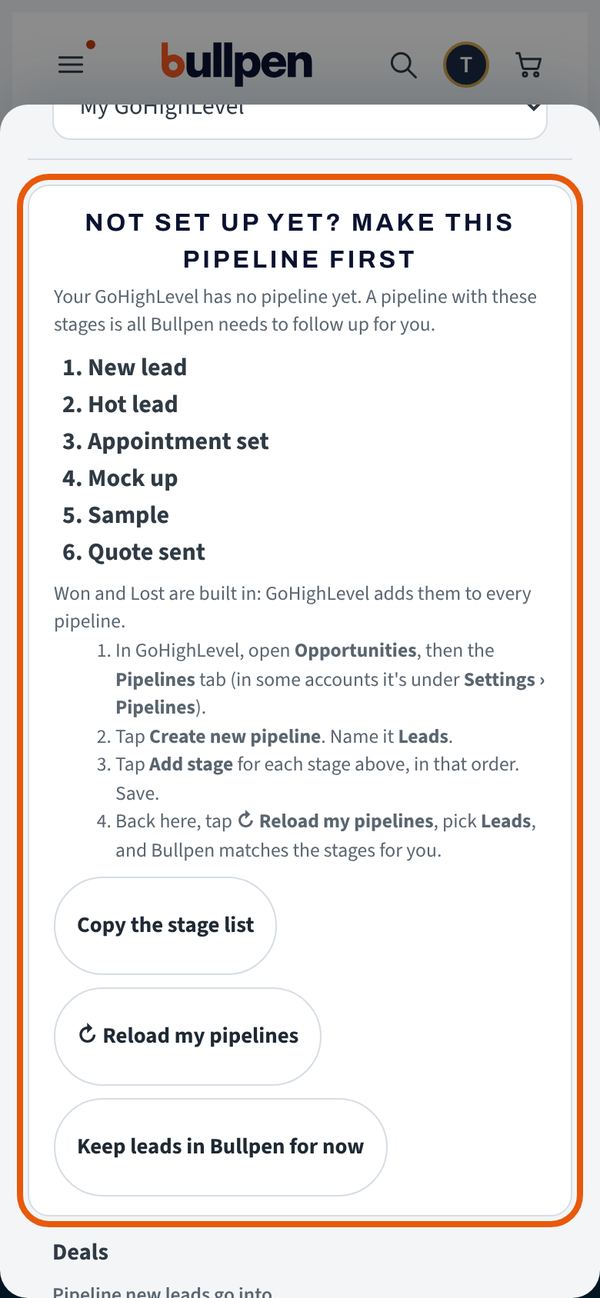
- Tap Copy the stage list so you have the names handy.
- In GoHighLevel, open Opportunities (left side), then the Pipelines tab. In some accounts it's under Settings, then Pipelines.
- Click Create new pipeline. Name it Leads.
- Add the stages one at a time, in this order: New lead, Hot lead, Appointment set, Mock up, Sample, Quote sent. Click Save.
- Back in Bullpen's CRM setup, tap Reload my pipelines.
4. Tell Bullpen about it (CRM setup)
Still on Menu, then CRM setup:
- Your CRM: pick My GoHighLevel.
- Pipeline new leads go into: pick Leads (or your own pipeline).
- Match the stages. Bullpen guesses from the names. Check each box: First stage for new leads = New lead, Hot lead, Appointment set, Mock up, Sample, Quote sent, Won and Lost. Fix any that are wrong. If you used your own pipeline, pick the stage that means the closest thing.
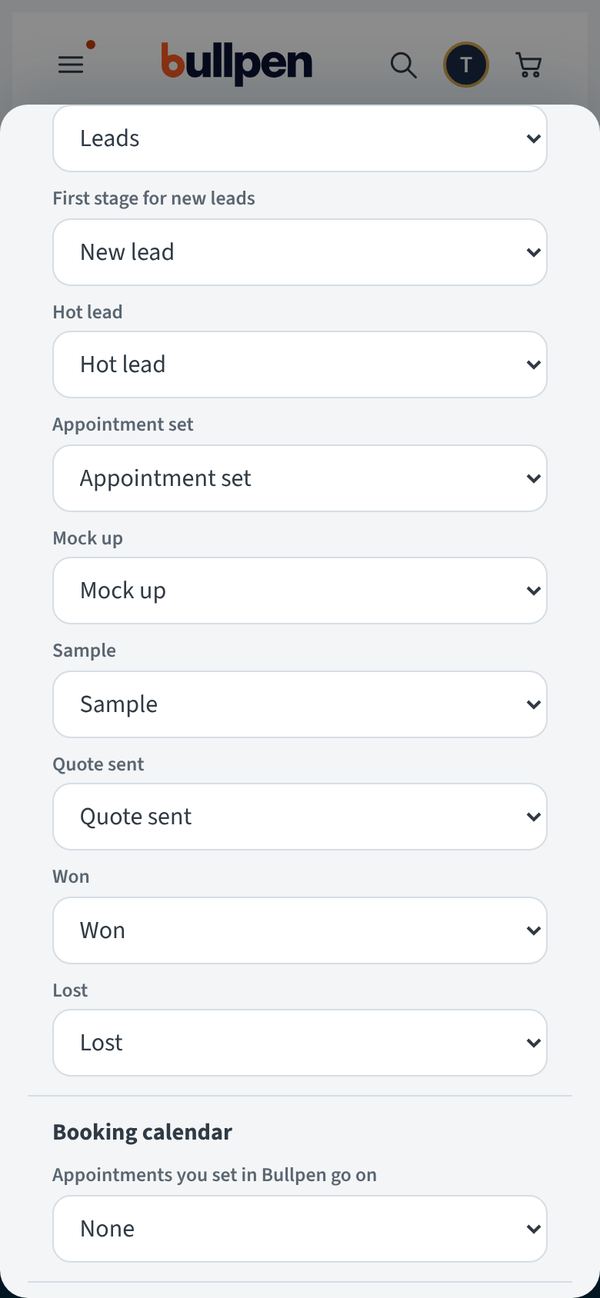
- Booking calendar: pick the calendar your appointments go on. No calendar yet? Leave it on None for now (see Optional extras).
- Fields Bullpen fills in (optional): leave these on None unless you made the fields (see Optional extras).
- Your shows: Bullpen lists your GoHighLevel tags. Tick every tag that's a show or event (like
fabtech 2025oribs 2026). Each one becomes a show you can pick in Follow Up. - Tap Save.
5. Tag your shows with the year
This is how Bullpen knows where and when you met someone, so later you can say "call everyone I met at FABTECH last year".
- In GoHighLevel, open a contact you met at a show.
- Add a tag with the show name and the year, like
fabtech 2025. Use the exact same tag for everyone from that show. - Tip: in GoHighLevel's contact list you can tick many people at once and add the tag to all of them.
- Back in Bullpen, go to Menu, CRM setup, Your shows and make sure the new tag is ticked. Tap Save.
6. Mark who bought before
Past clients are your best calls. Bullpen needs to know who they are.
- From now on: when a deal closes, move it to Won in GoHighLevel and put the amount on it. Bullpen reads it as a past client, with the year and what they spent.
- Customers from before: open the contact in GoHighLevel and add a tag with the year they ordered, like
ordered in 2025. Bought two years? Add both tags (ordered in 2024andordered in 2025). - Your very best customers: also add the tag
top 100orfive star. They show up under Top clients in Filters. - A contact tagged
customeralso counts as a past client.
7. Tidy up your list
A messy list still works, but Tidy up fixes the most common problems for you.
- Menu, then CRM setup. Scroll down to Tidy up.
- Contacts not in a pipeline: tap Make deals for …. Each one gets a deal in your first stage, so they show up in your call lists. (Calling someone or marking them Won also makes the deal on its own.)
- A show tag with no year: pick the year, then tap Add the year.
- Won deals with no amount: type what they spent, then tap Save the amounts.
- No phone: they can still be emailed. Add a number in GoHighLevel to call them.
- Duplicates: nothing to do. Bullpen merges people with the same email or phone and shows the newest copy.
8. Bring in all your leads
Leads already in GoHighLevel
Nothing to do. They come in on their own once you're connected and CRM setup is saved.
A spreadsheet or list (Excel, CSV, Google Sheet, an old CRM export)
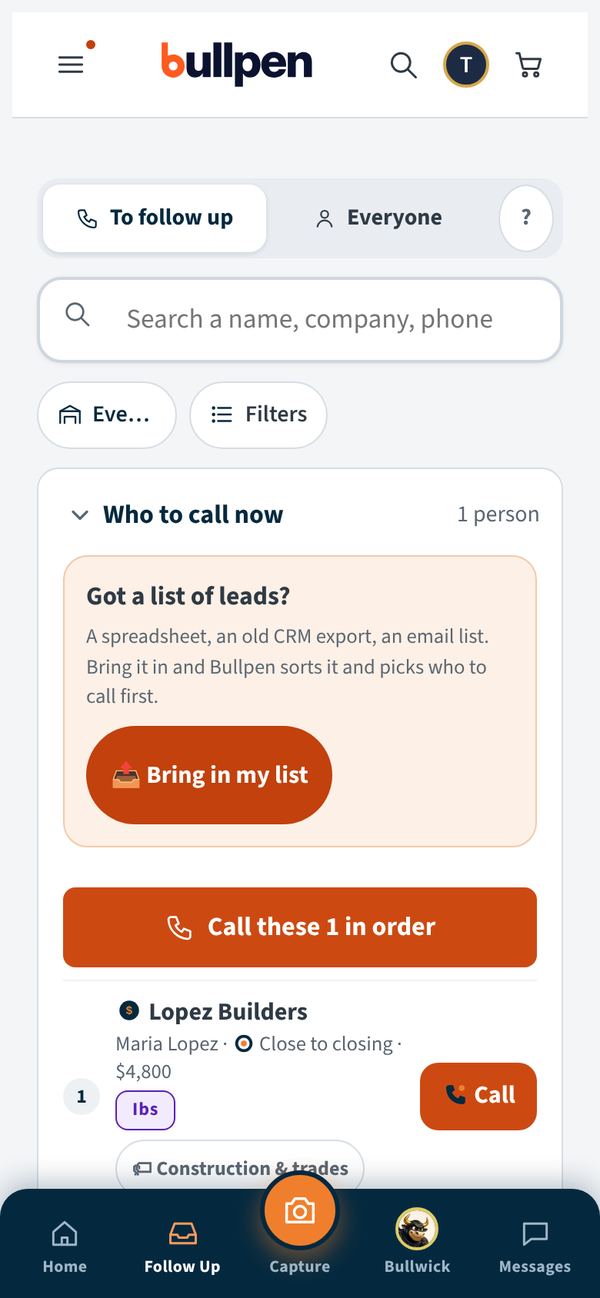
- Tap Follow Up at the bottom, then Bring in my list. (It's also under Menu, CRM setup.)
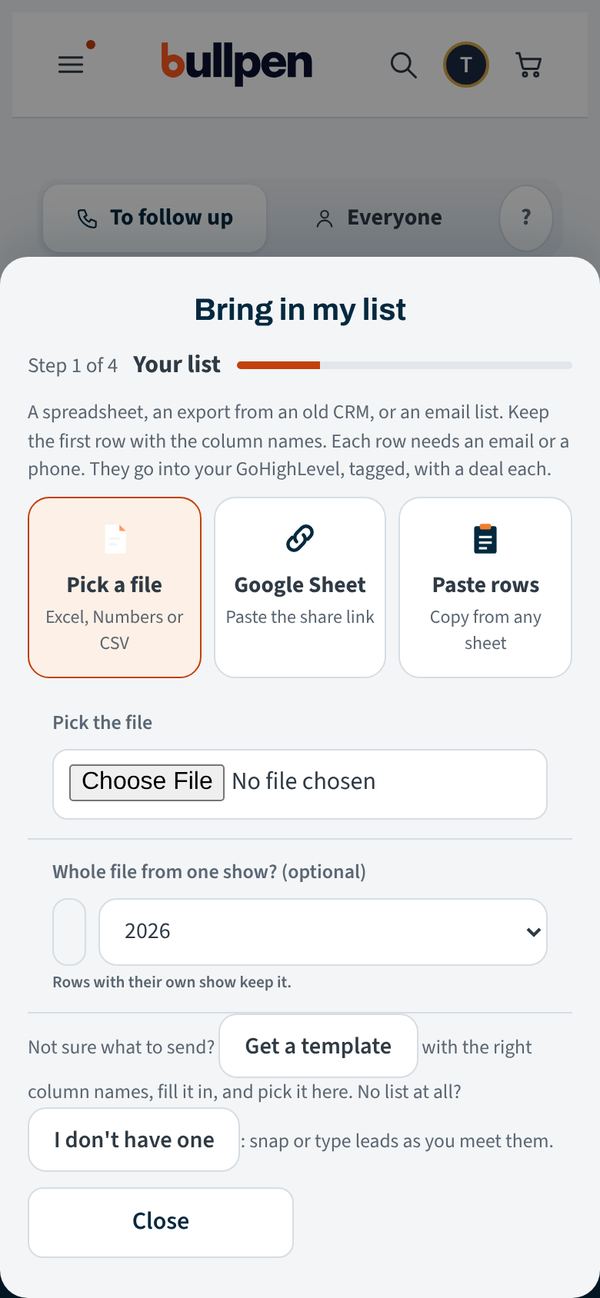
- Step 1, Your list: tap Pick a file, Google Sheet (paste the share link) or Paste rows. Need the right column names? Tap Get a template. If the whole file is from one show, type the show name and pick the year under Whole file from one show?
- Step 2, Check the columns: Bullpen shows what it thinks each column is (name, company, phone, email, show…). Change any that are wrong. Tap Looks right.
- Step 3, Fix what's wrong: add a missing email or phone, or tap Skip to leave a row out.
- Step 4, Add: tick the box saying you have permission to contact these people. Tap Add. Nervous? Tap Add the first 10 first to see how they look.
- Each person goes into your GoHighLevel, tagged with the show, with a deal in your first stage.
- Bullpen tells you what it found. Tap Call the top 20 now to start. The rest wait under From your list on Follow Up, and Bullpen hands you 20 a day, best first. Tap Give me 20 more on a strong day.
New people at a show
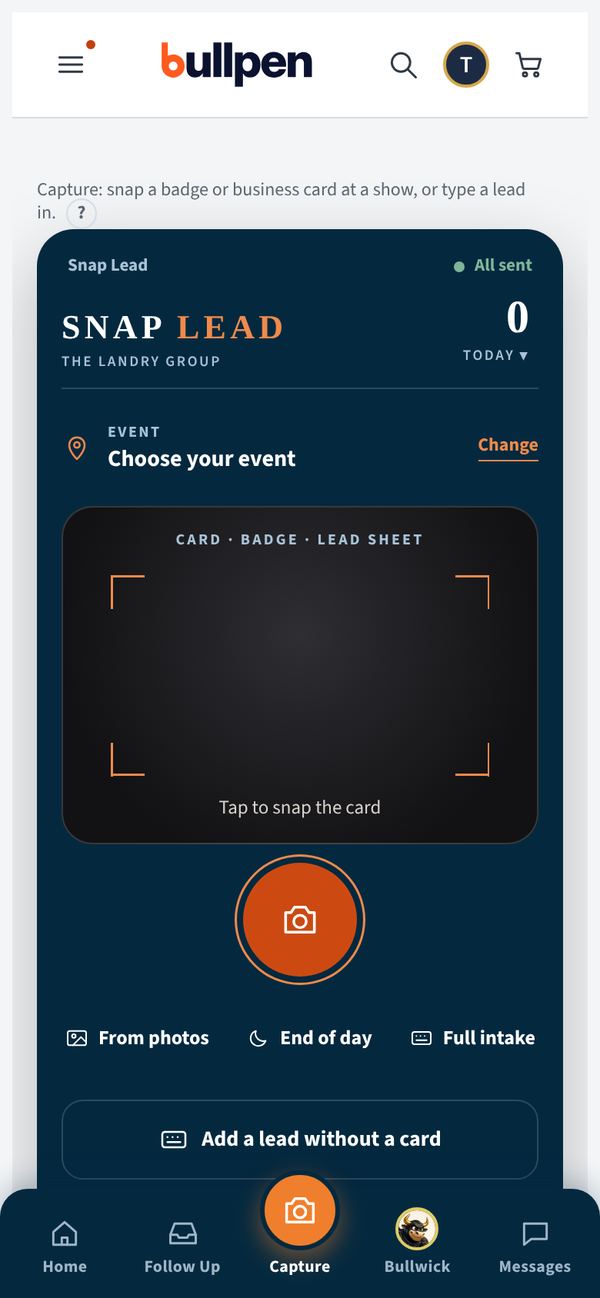
- Tap Capture (the orange camera at the bottom).
- Check the event at the top. Tap Change to pick the show you're at.
- Tap Tap to snap the card and take a photo of their business card, badge or lead sheet. You'll see Lead saved. That's it.
- If you have a second, pick what they're shopping for or tap Talk a note. No card? Tap Add a lead without a card.
9. Your daily follow up, step by step
Do this every morning. It takes as long as your calls take.
- Tap Follow Up at the bottom. The number on the tab is how many calls are due today.
- Stay on To follow up. That's today's list, in the right order: what you promised first, then people who replied, hot deals, then leads that are due. Everyone is every single person, for when you're looking for someone.
- Tap Call these … in order.
- Each card shows who they are, where you met them, the deal and the latest note. Tap Call.
- After the call, tap how it went: Talked, No answer or Left voicemail. Bullpen sets the next step for you.
- Then tap Won, Tomorrow or Skip. The next person opens. Tap More ▾ for other choices like Call back at or Not interested.
- Tap ✕ Close to stop. Next time, Bullpen picks up where you left off.
- When something moves forward (an appointment, a mock-up, a sample, a quote), move the deal to that stage. Bullpen and GoHighLevel stay in step.
Call everyone from one show, or one year
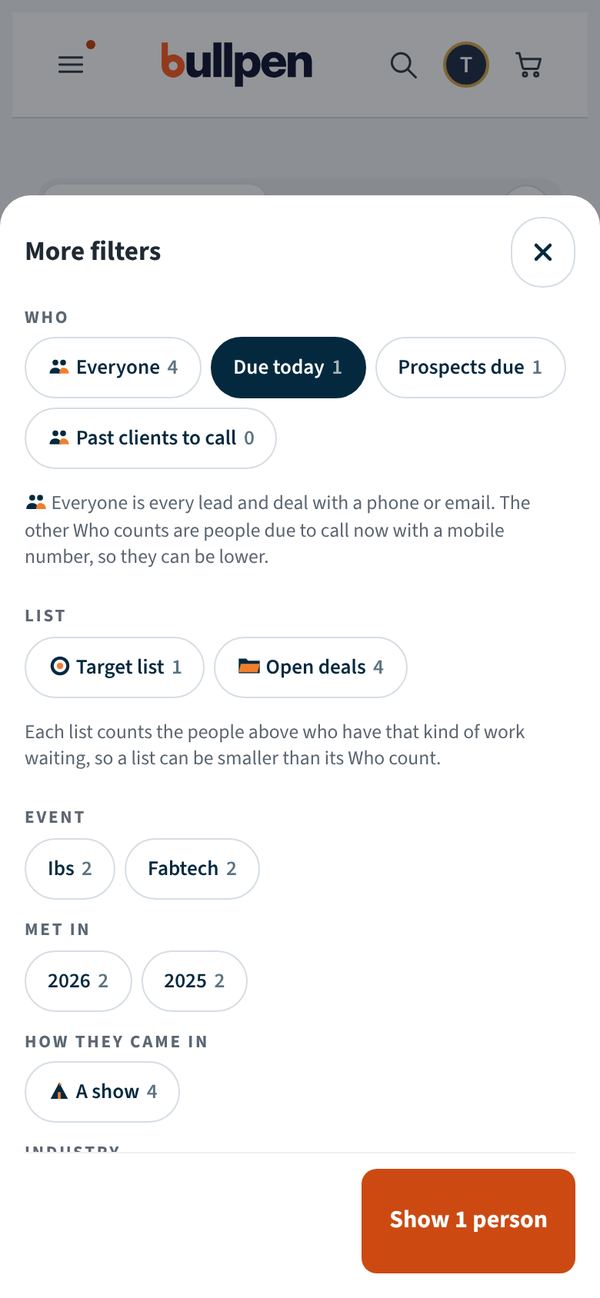
- On Follow Up, tap Filters at the top.
- Under Event, tap the show. Under Met in, tap the year. You can tap more than one. Example: Fabtech and 2025.
- Tap Show … people at the bottom, then Call these … in order.
Other lists worth working
- Reorders due: past clients who ordered last year and not yet this year. Your easiest money.
- Win back, Big clients, New from shows: under More lists on Follow Up.
- Quotes & invoices: every quote that's out. Tap Follow up, Open or Lost on each.
- Messages (bottom): texts and emails people sent back. Tap Reply, then Done when it's handled.
10. Optional extras
Instant updates (replies and stage changes show up right away)
- In Bullpen: Menu, then Check my connections. Scroll to Instant updates from GoHighLevel. Tap Show my link, then Copy the link.
- In GoHighLevel: open Automation and create a workflow.
- Add the triggers Customer Replied and Pipeline Stage Changed.
- Add the action Webhook, method POST, and paste the link. Save and publish.
- In any workflow that sends automatic texts, open its Settings and turn on Stop on response.
A calendar and fields for Bullpen
- In GoHighLevel: Settings, Custom Fields, Add Field. Make four text fields: Show or event, How many gifts, Lead notes, Text consent.
- Open Calendars, Create Calendar. Name it Bullpen appointments, set your hours, save.
- In Bullpen: Menu, CRM setup. Pick the calendar under Booking calendar and each field under Fields Bullpen fills in. Tap Save.
11. Getting help
- Ask Bullwick: tap the Bullwick tab at the bottom (or Menu, then Ask Bullwick) and ask in plain words, like "how do I tag my shows?" He answers from these same steps.
- Tell Bullpen: Menu, then Tell Bullpen, to send a screenshot of where you're stuck.
- Or call the person who invited you to Bullpen.