How to plug your GoHighLevel into Bullpen. It takes about 10 minutes. Do it on a computer if you can (GoHighLevel is easier on a big screen), then finish the last part in Bullpen on your phone or computer.
What this does: Bullpen reads your contacts and deals from GoHighLevel and puts them in Follow Up, so you know who to call next. Connecting does not change anything in your GoHighLevel. Bullpen only writes to it when you tap something yourself, like logging a call or marking a deal won.
Part 1: Make a key in GoHighLevel (about 5 minutes)
- Log in to GoHighLevel and open your own account (the sub-account with your contacts), not the agency view.
- Click Settings at the bottom left.
- In the Settings menu, click Private Integrations.
Don't see it? You need to be an Admin on that account. If you're not, ask whoever set up your GoHighLevel to add you as an Admin or to do this step for you. - Click Create new Integration (the button may just say "Create Integration").
- Name it Bullpen. For the description you can type "Bullpen follow up". If there is a Next button, click it.
- Pick the permissions (scopes). Tick both the View and the Edit box for each of these:
- Contacts
- Opportunities
- Conversations and Conversation Messages
- Calendars and Calendar Events
- Locations (plus Location Tags and Custom Fields if you see them)
- Users (View is enough)
- Workflows (View is enough)
- Click Create. GoHighLevel shows you a long key that starts with pit-.
- Copy that key right away and paste it somewhere safe for a minute (a note on your phone works). GoHighLevel shows it only once. If you lose it, just make a new one.
Part 2: Copy your Location ID (1 minute)
Easiest way: while you're in your GoHighLevel account, look at the web address at the top of your browser. It looks like this:
app.gohighlevel.com/v2/location/AbC123xYz456LoCaTiOn/dashboard
The part after /location/ and before the next / is your Location ID. Copy just that part.
Or: Settings, then Business Profile, where it is listed as Location ID.
Part 3: Paste both into Bullpen (2 minutes)
Open Bullpen at bullpen-fe30.onrender.com and log in.
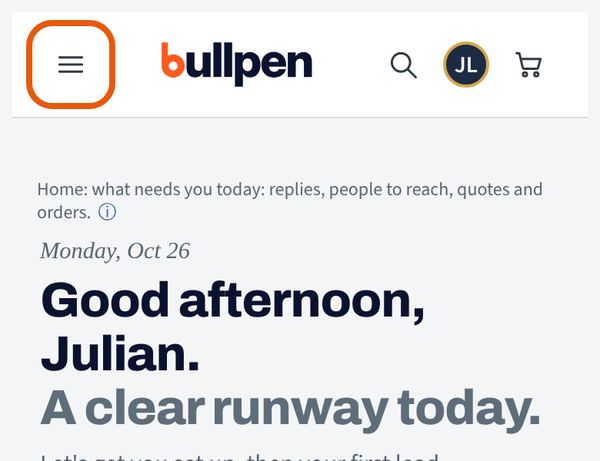
Step 1. Tap the Menu button at the top left.
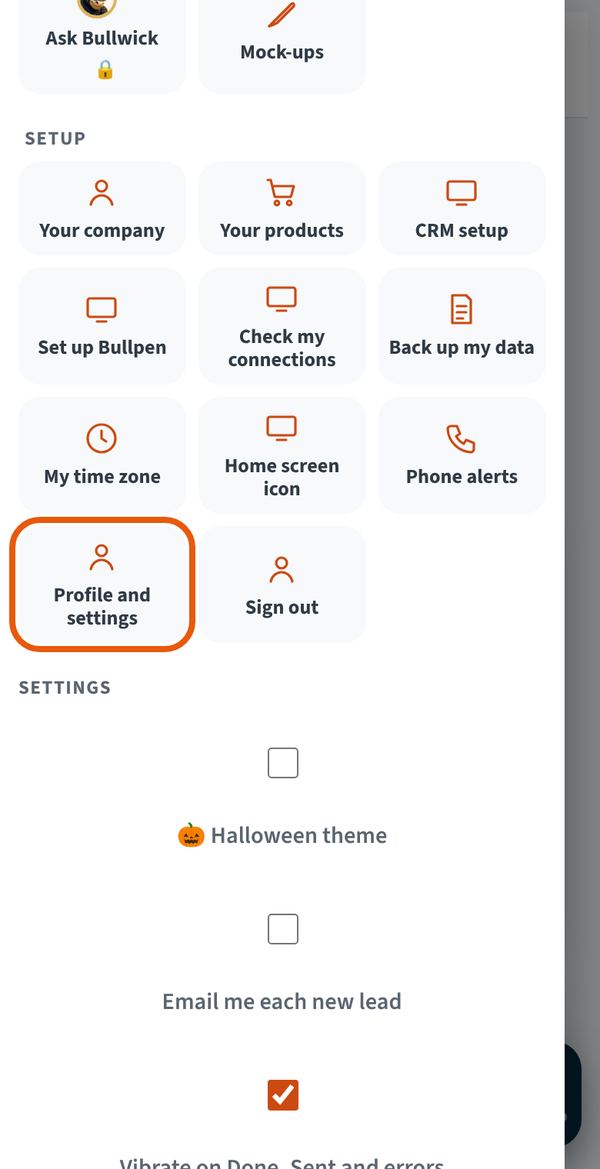
Step 2. Scroll down to the Setup section and tap Profile and settings.
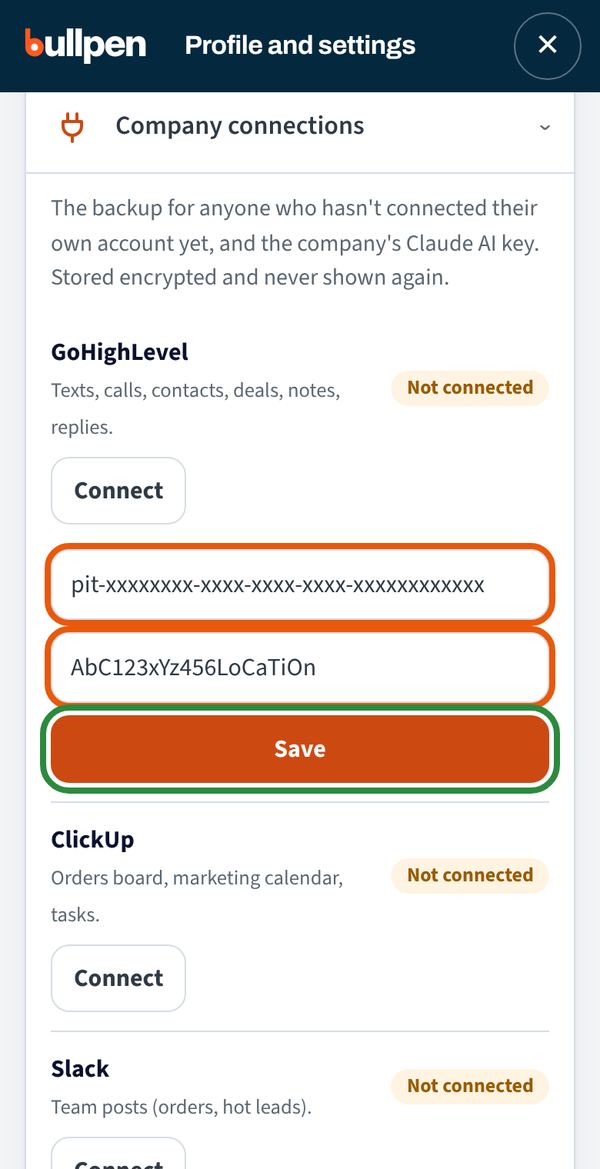
Step 3. Tap Company connections. Next to GoHighLevel, tap Connect. Two boxes open:
- In the first box (Private integration token), paste the pit- key from Part 1.
- In the second box (Location ID), paste the Location ID from Part 2.
Then tap Save. The label next to GoHighLevel changes from "Not connected" to connected.
Step 4. Check it worked: tap Menu, then Check my connections. GoHighLevel should say it's working.
Part 4: Tell Bullpen where your leads live (2 minutes)
- Tap Menu, then CRM setup.
- Pick the pipeline your new leads go into and the stage where new ones start. Tap Save.
- No pipeline yet? That's fine. CRM setup shows you a simple one to make in GoHighLevel ("Not set up yet? Make this pipeline first"), with the stages to copy.
- Tap Follow Up. Your contacts and deals show up within a few minutes.
Stuck?
- In Bullpen, tap Menu, then Ask Bullwick, and ask "How do I connect my GoHighLevel?" He walks you through it.
- Or tap Menu, then Tell Bullpen, to send me a screenshot of where you got stuck.
- Or call the person who invited you to Bullpen and do it together.
One thing to keep private: the pit- key is like a password to your GoHighLevel. Paste it only into Bullpen and don't text or email it to anyone, not even the person who invited you.